
 Log in
Installing Audio Sidebar in Obsidian
Someone asked me how to install audio sidebar, so here is a short explanation. There are two easy ways to install Audio Sidebar: Inside Obsidian or from the Community Plugins website.
Option 1: Install from Obsidian
- Open Obsidian and go to Settings.
- Select Community plugins.
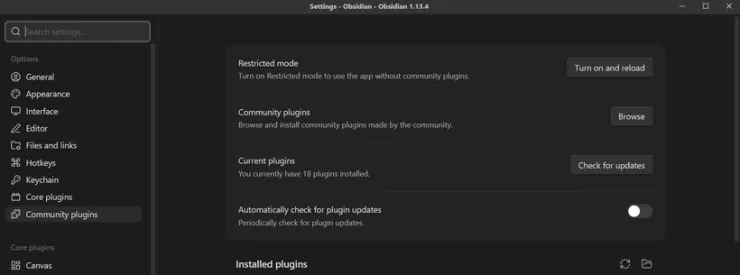
- Click Browse.
- Search for Audio Sidebar.
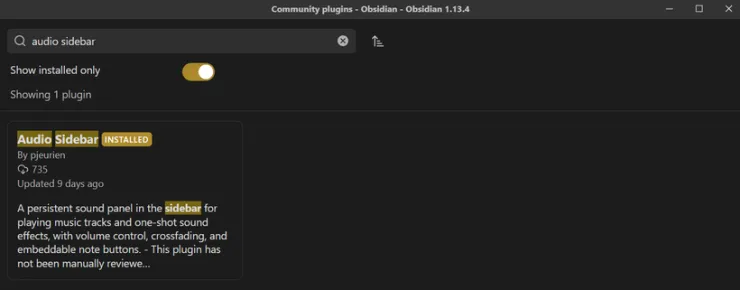
- Click the Plugin and click Install.
- Click Enable.
That's it. Audio Sidebar is now installed and ready to use.
Option 2: Install from the Community Plugins website
You can also open the Audio Sidebar page on the Obsidian Community Plugins website.
- Open the Audio Sidebar Community Plugin page.
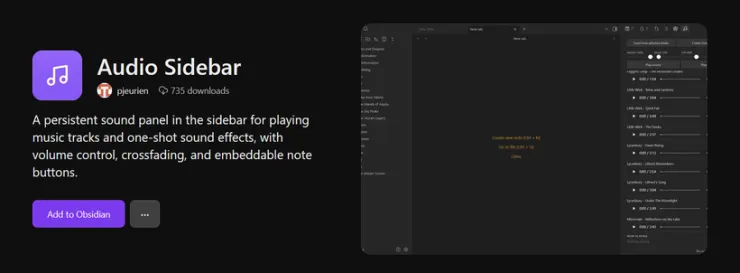
- Click Install on the plugin page.
- Your browser should ask whether you want to open the link in Obsidian.
- Allow it to open Obsidian.
- Obsidian will show the plugin installation prompt. Click Install.
- Once installed, click Enable.
Which option should I use?
Both methods install the same plugin. Installing directly through Obsidian is usually the easiest, but the website is useful if you want to share the plugin or go directly to its Community Plugins page.
Where can I find it?
Once Audio Sidebar is installed and enabled, you can find it in two ways.
You should see a music notes icon on the left side of Obsidian. Click it to open the Audio Sidebar on the right side.
You can also use the Command Palette by pressing Ctrl + P and searching for Audio Sidebar.